 Panel Haus
 The Editor
The workspace where quick flows and the full editor meet. Start fast, go as deep as you want.
Where the Wizard hands off
The Wizard gets you a finished page fast. The Editor is where you take it further. Everything the Wizard generated lands on the canvas as real, editable objects, so nothing is baked in. Tap any panel, bubble, or image and it is yours to change. Do as little as fix a single line, or rebuild the whole page by hand. The same workspace serves a first-timer and a power user.
The layered canvas
Every page is built from nine layers that always stack in the same order. That fixed order is what keeps a busy page clean and an export predictable:
- Background: a pattern or image behind everything.
- Panels: the bordered frames that hold your art.
- Images: the pictures that fill each panel, clipped to its bounds.
- Bound content: anything attached to a panel, so it is clipped and moves with it.
- Panel borders: drawn above the art they frame, so no seam shows at the edge.
- Floating content: bubbles and stickers that sit above the borders and can break the frame on purpose, with crisp SVG tails.
- Page overlays: anything you apply across every page at once.
- Editing handles: two more layers for selection and for dragging a bubble tail. These are the interface, and they are never drawn into an export.
Everything on the page is editable
Nothing on the canvas is locked to how it was generated. Resize panels or draw a custom layout. Zoom, rotate, flip, and reposition the image inside any panel until the composition reads right. Give text full formatting with saved styles, drop in stickers and effects for energy, and set a background from a library of patterns or your own image. If you can see it, you can change it.
Layers, history, and shortcuts
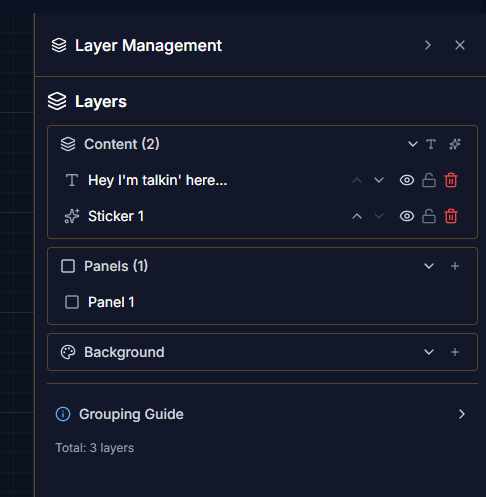
A full layer manager lets you reorder, rename, lock, hide, and set the opacity of anything on the page, so you always know what is where and nothing fights for the same space. A complete undo and redo history has your back with Ctrl+Z and Ctrl+Y, and keyboard shortcuts speed up the moves you make most.
Built for more than one page
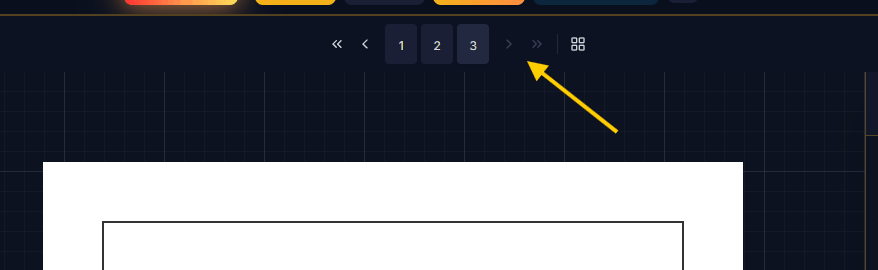
Comics are rarely a single page. Jump between pages with shortcuts, reorder and bulk-manage them in the page organizer, and apply a layout or background to every page at once for a consistent book. Your work saves itself as you go, so there is no save button to forget. Older PanelHaus backups can still be imported from a .comic file.
Your assets, always at hand
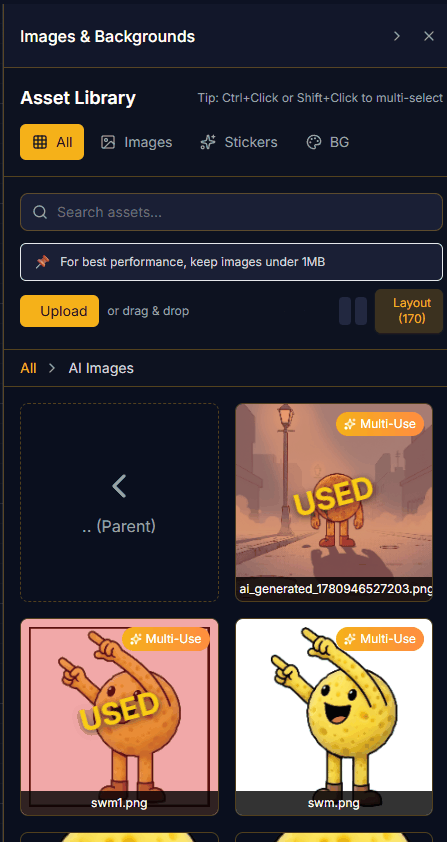
The Editor keeps your whole toolkit close. Pull from your AI image library to reuse past generations, lean on your World Vault to keep a cast on-model across pages, and upload custom fonts so your lettering matches your voice. Generate, drop in, and keep moving without ever leaving the canvas.
A canvas that stays put
Each page locks its size at creation, Square 700 by 700, Portrait 490 by 700, Landscape 700 by 560, or Comic Book 663 by 1025, so your layout never shifts and every export is pixel-clean. Zoom and pan move only your view, never your art, so you can work up close and still trust the page.
Best practices: get more from your ink
A few habits keep your generations efficient and your ink going further.
- Lock your character first. Save a character to the Vault before you generate a full page, so you are not re-rolling panels to fix consistency later.
- Write the prompt before you generate. A specific prompt (who, what, where, mood) gets it right in fewer tries than a vague one.
- Remix instead of regenerating. For small fixes like a recolor, a background swap, or a tweaked detail, remix the existing image rather than generating a brand new one.
- Draft cheap, finish sharp. Use standard generation for rough passes and save high-resolution output for the panels that earn it. Higher resolution costs more.
- Reuse your library. Pull an existing asset from your AI image library instead of generating the same thing twice.
- Order matters. Settle the story and layout before generating panels, so you are not paying to make images you will throw away.
- Bake text last (mobile). Baking runs another AI pass, so only bake once the panel art is final.
- Train only when you will reuse. Training a custom character model is the most credit-heavy action, so reserve it for a character you will use across many pages or projects.
- Going high-volume? Buy ink in a pack. The larger packs carry a better rate per dollar, and the ink does not expire at the end of the month.